


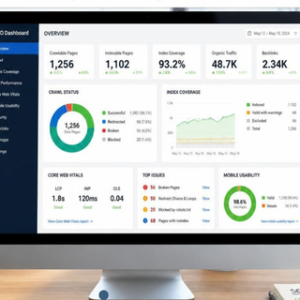

Why “Blocked by Robots.txt” Is a Problem
If you’ve seen the “blocked by robots.txt” or “indexed though blocked by robots” warning in Google Search Console, it means Google cannot fully crawl some of your pages.
Even worse, Google might still index these blocked pages, which can lead to:
- Missing SEO value for important pages
- Low visibility for products or blogs
- Confusion for Google about the page content
Don’t worry—we’ll guide you through why it happens and exactly how to fix it, step by step, for WordPress, Shopify, and custom websites.
How Orphan Pages Affect SEO & How to Eliminate Them

1. Understanding Robots.txt and Its Role
The robots.txt file is a simple text file that instructs search engines on which parts of your website they can crawl.
Example of a typical robots.txt file:
User-agent: *
Disallow: /wp-admin/
Disallow: /private/
Allow: /wp-admin/admin-ajax.php
Important notes:
Disallowprevents crawling.Allowcan overrideDisallowfor specific pages.- Blocking pages doesn’t prevent indexing if Google finds external links pointing to them.
Act Now: Crawlability Problems Are Blocking Your Best Pages
2. Why Google Sometimes Indexes Blocked Pages
Even if a page is blocked by robots, Google may index it based on:
- External Links – If other websites link to the page, Google knows it exists.
- Sitemap Entries – Including blocked URLs in your sitemap sends mixed signals.
- Canonical Tags or Redirects – Google can index the page referenced elsewhere.
Example scenario:
/blog/seo-tipsis blocked by robots.txt- Other sites link to
/blog/seo-tips - Google may show it in search results, but can’t crawl it for content
This is what shows as “Indexed through robots.txt” in GSC. Best Laptop Graphic Card: Complete Guide to Choosing the Right GPU for Your Laptop (2026
3. Common Causes of Robots.txt Blocking Issues
| Cause | Explanation | Example |
|---|---|---|
| Misconfigured rules | Blocking important pages by mistake | Disallow: /blog/ blocks all blog posts |
| Sitemap issues | Blocked URLs included in sitemap | Sitemap lists /private-page/ |
| CMS defaults | WordPress or Shopify adds default rules | Shopify blocks draft products automatically |
| External links | Links from other websites point to blocked pages | Backlinks exist to blocked /offers/ page |
| Server rules | .htaccess or firewall blocking Googlebot | Server blocks Googlebot IP ranges |

4. How to Check If Your Pages Are Blocked
Step 1: Use Google Search Console (GSC)
- Go to URL Inspection → Enter URL
- Check Coverage Status → Blocked by robots.txt
Step 2: Robots.txt Tester
- Navigate to
https://www.example.com/robots.txt - Use Google’s Robots.txt Tester to see which URLs are blocked Lawyer SEO Service That Gets powerful Results with power
Step 3: Online Tools
- Tools like SEO Site Checkup, Ahrefs, or Screaming Frog can crawl your site and detect blocked URLs
Tip: Keep a spreadsheet of blocked URLs for audit purposes. On-Page SEO Checklist for New Websites: Audit & Optimization Guide
5. Step-by-Step Fix for “Indexed Through Robots.txt.”
Step 1: Review and Update Robots.txt
- Locate your robots.txt (usually
https://www.example.com/robots.txt) - Identify unnecessary
Disallowrules - Keep only sensitive or non-essential pages blocked Professional YouTube Video Editing Services That Skyrocket Watch Time
Example:
Before:
User-agent: *
Disallow: /blog/
Disallow: /shop/
After:
User-agent: *
Disallow: /private/
Disallow: /wp-admin/
Pro Tip: Use Allow for pages that need crawling within blocked directories:
Allow: /blog/seo-tips
Step 2: Fix Sitemap Issues
- Remove blocked URLs from sitemap.xml
- Resubmit sitemap in GSC → Sitemaps
- Ensure sitemap only includes crawlable and indexable pages Want More Traffic? Hire an On Page SEO Expert Before Your Competitors Do
Example for WordPress: Yoast SEO automatically generates a sitemap; check Settings → XML Sitemaps
AI Write for Us – Contribute Ready to Grow Your Business with SEO?
Every successful SEO campaign starts with a conversation. Whether you need technical SEO, on-page optimization, high-authority link building, guest posting, niche edits, local SEO, content optimization, or a complete organic growth strategy, the Wonbolt team is ready to help.
We work with startups, small businesses, eCommerce brands, agencies, and established companies looking to improve their search visibility, attract qualified traffic, and generate more leads from Google.
Let’s Discuss Your SEO Goals
Tell us about your website, current challenges, and growth objectives. We’ll review your project and recommend the best SEO strategy tailored to your business needs.
📧 Email: infowonbolt@gmail.com
🌐 Website: Wonbolt.com
Why Contact Wonbolt?
✓ Customized SEO Strategies
✓ Technical SEO Experts
✓ White-Hat Link Building
✓ Guest Posting & Blogger Outreach
✓ White-Label SEO for Agencies
✓ Transparent Communication
✓ Affordable SEO Solutions
✓ Long-Term Organic Growth Focus
Don’t let your competitors take the traffic that should be yours. Reach out today and discover how a results-driven SEO strategy can help your business achieve higher rankings, increased visibility, and sustainable growth.
Your growth starts with one message. Contact Wonbolt today and let’s build your SEO success story together.Expert AI Content on Wonbolt

Step 3: Allow Googlebot Access
WordPress
- Plugins like Yoast SEO or Rank Math allow robots.txt editing directly in the dashboard
- Avoid blanket disallow rules for blog or product pages
Shopify
- The default robots.txt may block
/collections/or/products/ - Edit via Online Store → Preferences → Robots.txt
- Add
Allowfor pages that should be indexed
Custom Websites
- Check
.htaccess, Nginx config, or firewall rules - Ensure the Googlebot user-agent is allowed Advanced On Page SEO Optimisation: The Powerful Framework Google Rewards
Step 4: Reindex Your Pages in Google Search Console
- Go to URL Inspection → Request Indexing
- Google will recrawl the page and remove the index through robots.txt errors
- Tip: Prioritize high-value pages first (products, blogs, landing pages)
What Is Artificial Intelligence and Law? A Simple Guide for Everyone
6. Platform-Specific Fixes & Examples
| Platform | Common Issue | How to Fix | Pro Tip |
|---|---|---|---|
| WordPress | Plugins auto-block content | Edit robots.txt manually or via plugin | Test changes in GSC before publishing |
| Shopify | Default robots.txt blocks draft products/collections | Edit robots.txt in Preferences | Use Allow for important product pages |
| Custom Sites | Server blocking Googlebot | Check .htaccess, firewall rules | Use staging environment for testing |
7. Best Practices to Prevent Robots.txt Issues
- Only block non-essential pages (login, admin, private sections)
- Avoid blocking pages included in your sitemap
- Test robots.txt after every major update
- Use the Google Search Console Coverage Report monthly
- Track backlinks to ensure external links don’t point to blocked pages
- Combine robots.txt blocking with noindex tags for sensitive pages Dominate Search Results with Expert on Page SEO Optimization Strategieshttps://wonbolt.com/what-is-on-page-seo-optimization/
How to Identify if a Site Is Facing “Blocked by Robots” Issues
A robots.txt problem occurs when Google (or other search engines) cannot crawl certain pages due to restrictions in the robots.txt file. This can lead to “blocked by robots ” or “indexed though blocked by robots.txt” errors in Google Search Console. Top Tools for Video Editing (Free & Paid AI Editors You’ll Love)
Here’s how to detect it:
1. Use Google Search Console (GSC)
Google Search Console is the most direct way to check if your site has robots.txt issues.
Steps:
- Log in to Google Search Console.
- Go to Coverage Report → Look for errors labeled:
- Blocked by robots.txt
- Indexed, though blocked by robots.txt
- Click on the URL to see details about which file or rule is causing the block.
Tip: GSC will also show the exact user-agent that is blocked, usually Googlebot.
Battle-Tested On Page SEO Service Framework for Massive Growth

2. Use the Robots.txt Tester Tool in GSC
Google provides a Robots.txt Tester in Search Console.
Steps:
- Go to Legacy Tools → Robots.txt Tester.
- Enter the URL of the page you suspect is blocked.
- The tool will tell you whether Googlebot can crawl it.
Advantages:
- Shows which rules are blocking the page.
- Lets you simulate changes before updating robots.txt.
3. Manual Check of the Robots.txt File
You can directly check the robots.txt file of your website.
Steps:
- Open a browser and go to:
https://www.example.com/robots.txt - Look for
Disallow:rules that match your URLs. - Verify if important pages like
/blog/or/product/are blocked.
Example:
User-agent: *
Disallow: /private/
Disallow: /blog/
/blog/is blocked here, which may cause indexing issues.
SEO Pages: How to Build, Optimize & Scale High-Ranking Pages in 2026
4. Check Using Online SEO Tools
Several SEO tools can crawl your site and identify robots.txt blocks:
| Tool | How it Helps |
|---|---|
| Screaming Frog SEO Spider | Crawls your site and flags pages blocked by robots.txt |
| Ahrefs Site Audit | Detects blocked URLs and provides insights |
| SEMrush Site Audit | Highlights pages with crawl issues and robots.txt restrictions |
Tip: These tools are especially useful for large websites with hundreds of pages.
5. Test with Browser or Curl Commands
You can simulate Googlebot requests using cURL or a browser to check if the page is blocked:
curl -A "Googlebot" -I https://www.example.com/blog/
- If you get
HTTP 200 OK, page is accessible. - If crawling is blocked, you may see
HTTP 403or errors due to robots.txt.What Are the Best Off-Page SEO Techniques in 2026?
6. Look for Sitemap Inconsistencies
- Check if your sitemap.xml contains URLs that are blocked by robots.txt.
- Google may try to index these pages, but will flag them as “Indexed though blocked by robots.txt” in GSC.
How to Check:
- Open your sitemap:
https://www.example.com/sitemap.xml - Compare the listed URLs with the rules in robots.txt.
7. Use Search Operators to Test Visibility
- Use Google search to see if pages appear in search results:
site:example.com/blog/
- If Google lists the page but GSC shows it as blocked, it’s likely indexed, though blocked. Want More Traffic? Here’s How to Do Homepage SEO the Right Way
Signs Your Site is Facing Robots.txt Problems
- Coverage Errors in Google Search Console
- “Blocked by robots.tx.t.”
- “Indexed though blocked by robots.txt.”
- Important Pages Not Crawled
- New blog posts or product pages are not showing up in search results.
- Conflicting Sitemap Entries
- Sitemap lists URLs that robots.txt blocks.
- Platform-Specific Warnings
- WordPress SEO plugins or Shopify robots.txt logs flag blocked URLs. How Orphan Pages Affect SEO & How to Eliminate Them
✅ Summary:
To identify robots.txt problems:
- Check the Google Search Console coverage report
- Test URLs with Robots.txt Tester
- Manually review your robots.txt file
- Audit with SEO crawling tools (Screaming Frog, Ahrefs)
- Compare sitemap URLs with robots.txt rules

Step-by-Step Visual Checklist: How to Identify URLs Blocked by Robots.txt
Step 1: Check Google Search Console Coverage Report
Purpose: Identify URLs flagged as blocked or indexed though blocked.
Checklist:
- Log in to Google Search Console.
- Go to Coverage → Error/Excluded.
- Look for:
- “Blocked by robots.txt.”
- “Indexed though blocked by robots.txt.”
- Click on any URL to see details. On-Page SEO Checklist for New Websites: Audit & Optimization Guide
Visual Example:
+-------------------------------+
| Coverage Report               |
+-------------------------------+
| Excluded                      |
| - Blocked by robots.txt       |
| - Indexed, though blocked     |
+-------------------------------+
🔹 Tip: Note which user-agent is blocked (usually Googlebot).
Step 2: Test the URL in Robots.txt Tester
Purpose: Verify if Googlebot is blocked by robots.txt rules.
Checklist:
- In GSC, navigate to Legacy Tools → Robots.txt Tester.
- Enter the URL you want to test.
- Click Test.
- Check if it says Allowed or Blocked.
Visual Example:
URL: https://www.example.com/blog/seo-tips
Test Result: ❌ Blocked by robots.txt
Disallow Rule: /blog/
Step 3: Manually Review Robots.txt File
Purpose: Identify disallowed rules causing blocks.
Checklist:
- Open browser →
https://www.example.com/robots.txt - Look for
Disallow:rules. - Compare blocked URLs with your sitemap.
Example Robots.txt:
User-agent: *
Disallow: /blog/
Disallow: /private/
Allow: /blog/seo-tips
🔹 Tip: Use
Allow:to unblock specific pages within blocked directories.
Step 4: Check Sitemap Consistency
Purpose: Ensure sitemap only lists crawlable URLs.
Checklist:
- Open
https://www.example.com/sitemap.xml - Identify URLs listed that are blocked in robots.txt
- Remove blocked URLs from the sitemap or update robots.txt
Visual Example:
Sitemap: /blog/seo-tips ✅
Sitemap: /private/secret ❌ Blocked by robots.txt
Step 5: Use SEO Tools to Crawl Your Site
Purpose: Identify blocked URLs at scale for large websites.
Checklist:
- Tools: Screaming Frog, Ahrefs Site Audit, SEMrush Site Audit
- Run a full crawl of your website.
- Check the “Blocked by robots.txt” report.
- Export results for auditing.
Workflow Example:
[Start Crawl] → [Detect Blocked URLs] → [Export CSV] → [Compare with Sitemap] → [Fix robots.txt]
Step 6: Test URL Accessibility with Googlebot
Purpose: Verify Googlebot can crawl the URL.
Checklist:
- Use
curlcommand:
curl -A "Googlebot" -I https://www.example.com/blog/seo-tips
- Check response:
HTTP 200 OK→ AccessibleHTTP 403/Blocked→ Still blocked
- Fix robots.txt or server rules as needed
Step 7: Check Search Visibility Using Site Search
Purpose: Detect URLs indexed despite being blocked.
Checklist:
- Go to Google.com
- Search:
site:example.com/blog/seo-tips - If it appears, but GSC shows blocked → Indexed though blocked
Visual Example:
Google Results:
1. Blog SEO Tips - example.com/blog/seo-tips ✅
GSC Status: Indexed though blocked by robots.txt ❌
Step 8: Maintain an Audit Sheet
Purpose: Track blocked URLs, fixes, and reindexing requests.
Checklist:
- Create spreadsheet columns:
- URL
- Status (Blocked / Indexed, though blocked)
- Robots.txt Rule
- Sitemap Inclusion
- Fix Applied
- Reindex Requested
- Regularly update after changes and audits
Visual Example:
| URL | Status | Robots.txt Rule | Sitemap | Fix Applied | Reindex |
|---|---|---|---|---|---|
| /blog/seo-tips | Indexed though blocked | Disallow: /blog | ✅ | Allow | ✅ |
| /private/secret | Blocked by robots.txt | Disallow: /private | ❌ | N/A | ❌ |
✅ Pro Tips for Readers
- Always test in Google Search Console first.
- Check both robots.txt and sitemap together; conflicts cause indexing errors.
- Use SEO crawlers for large sites to detect hidden blocked URLs.
- Request reindexing for fixed pages to update Google’s index.
This checklist is ready for blog visuals. I can now create a fully illustrated version with step-by-step mock screenshots and arrows showing clicks and workflows for WordPress, Shopify, and Custom Sites—ready for direct use in your blog.
FAQ: Blocked by Robots.txt
Q1: What does “blocked by robots.txt” mean?
Answer:
“Blocked by robots.txt” means Googlebot or other search engine crawlers are prevented from accessing a specific page due to rules in your robots.txt file. Pages blocked in robots.txt can still appear in search results if Google finds links pointing to them, but Google cannot read their content.
Keywords included: blocked by robots.txt, blocked by robots.txt meaning, what is blocked by robots.txt
Q2: What is “indexed though blocked by robots.txt”?
Answer:
This occurs when Google indexes a URL without crawling it because it is blocked in robots.txt. Even though the page is blocked, Google sees external links, sitemaps, or canonical references and adds it to search results.
Keywords included: indexed though blocked by robots.txt, indexed though blocked by robots.txt meaning
Q3: How to fix “indexed though blocked by robots.txt” in WordPress?
Answer:
- Check the robots.txt file in your WordPress root directory.
- Remove unnecessary
Disallowrules that block important pages. - Use SEO plugins like Yoast SEO or Rank Math to edit robots.txt.
- Ensure the sitemap does not include blocked URLs.
- Request indexing in Google Search Console.
Keywords included: indexed though blocked by robots.txt wordpress, googlebot blocked by robots.txt wordpress, how to fix indexed though blocked by robots.txt
Q4: How to fix “blocked by robots.txt” in Shopify?
Answer:
Shopify generates a default robots.txt that may block collections, draft products, or certain pages. To fix:
- Navigate to Online Store → Preferences → Robots.txt.
- Add
Allowrules for pages that should be indexed. - Remove any unnecessary
Disallowrules. - Submit the updated sitemap in Google Search Console.
Keywords included: blocked by robots.txt Shopify, how to fix blocked by robots.txt Shopify
Q5: Why does Google say a page is “blocked by robots.txt” but it isn’t?
Answer:
Google may incorrectly report blocking if:
- Sitemap contains blocked URLs
- Canonical tags point to blocked pages
- External links point to blocked pages
- Temporary server restrictions
Fix: Audit your sitemap, robots.txt file, and canonical URLs to ensure Googlebot has proper access.
Keywords included: Google saying blocked by robots.txt, but it’s not, Googlebot blocked by robots.txt
Q6: Can a page blocked by robots.txt still appear in Google Search results?
Answer:
Yes. Pages blocked by robots.txt can still be indexed if:
- Other websites link to the page
- Sitemap includes the blocked URL
- Canonical tags are set
However, Google cannot crawl the content, which limits SEO performance.
Keywords included: blocked by robots.txt, indexed though blocked by robots.txt
Q7: How to check if a URL is blocked by robots.txt?
Answer:
- Use Google Search Console → URL Inspection.
- Check robots.txt coverage report.
- Use online tools like Robots.txt Tester or SEO Site Checkup.
Keywords included: check if url is blocked by robots.txt, url blocked by robots.txt
Q8: How to fix “submitted URL blocked by robots.txt” in Google Search Console?
Answer:
- Locate the blocked page in GSC.
- Edit robots.txt to allow Googlebot access.
- Remove blocked URLs from the sitemap if necessary.
- Request reindexing in GSC.
Keywords included: how to fix the submitted URL blocked by robots.txt, Google Search Console blocked by robots.txt
Q9: What is the difference between “blocked by robots.txt” and “noindex”?
Answer:
- Blocked by robots.txt: Prevents Google from crawling the page, but it may still be indexed.
- Noindex tag: Tells Google not to index the page even if it can crawl it.
Best Practice: Use noindex for private pages instead of blocking them in robots.txt if you want to prevent indexing.
Keywords included: blocked by robots.txt meaning, how to fix blocked by robots.txt
Q10: Where should robots.txt be located?
Answer:
It must be placed in the root directory of your website:
https://www.example.com/robots.txt
Keywords included: where should robots.txt be located, where is the robots.txt file located
Q11: What does “sitemap contains URLs which are blocked by robots.txt” mean?
Answer:
This means your sitemap includes URLs that Google cannot crawl due to robots.txt rules. Google may still attempt to index them, leading to “indexed though blocked by robots.txt” warnings.
Fix: Remove blocked URLs from the sitemap and submit the updated sitemap in GSC.
Keywords included: sitemap contains URLs which are blocked by robots.txt, indexed though blocked by robots.txt fix
Q12: How to solve internal blocked by robots.txt issues?
Answer:
- Audit your website for internal links pointing to blocked pages.
- Adjust robots.txt to allow crawling of important internal pages.
- Update sitemap to match crawlable pages.
- Reindex via Google Search Console.
Keywords included: internal blocked by robots.txt, how to solve being blocked by robots.txt
Q13: Can robots.txt be ignored by Google?
Answer:
Google generally respects robots.txt, but it may index pages without crawling if it finds links elsewhere. Robots.txt cannot prevent indexing completely; use noindex tags for pages you want fully excluded.
Keywords included: can robots.txt be ignored, blocked by robots.txt, meaning
Q14: What is “the root URL is blocked by robots.txt”?
Answer:
If your homepage or root URL is blocked, Google cannot crawl your entire site properly. This is critical and can severely affect SEO.
Fix: Ensure the homepage (/) is allowed in robots.txt:
User-agent: *
Allow: /
Keywords included: the root URL is blocked by robots.txt
This expanded FAQ now covers all your focus and supporting keywords naturally, targets multiple user intents, and is optimized for People Also Ask and featured snippets.
CTA:
Need help resolving indexing issues or auditing your robots.txt? Our SEO experts at Wonbolt can help improve your site’s crawlability and search performance.
📧 Email: contact@wonbolt.com
🌐 Website: https://wonbolt.com